

 Windows XP, Vista, 7
Welcome to Any Video Editor User Guide!
Transitions are how one scene switches to the next. Rather than simply ending one scene and beginning the next, you can use Any Video Editor's transitions to insert TransAccord, TransBubbles, TransCentral, TransCrumple, and other dramatic shifts between video clips.
Any Video Editor has about 28 transitions you can easily use to add professional touches and visual interest to your movies. You can add transitions when two or more clips are placed to the Timeline/Storyboard Area. The transitions can be added by simple drag-and-dropping them to the Timeline/Storyboard Area (it is better to use the Storyboard view for transitions adding).
How to add transitions in Any Video Editor?
Step 1: Add videos or images to the Timeline and Storybox area
Step 2: Add the desired transition to videos or images
Step 3: Define the transition duration
Step 1: Add videos or images to the Timeline and Storybox area
To apply different transitions and effects to your video and image, you should place it to the Timeline area, first of all. So, select your video in the file area (enter the Video category if you are not in it) and without releasing the left mouse button drag it to the very first row of the Timeline and only after that release the button to drop the video there:
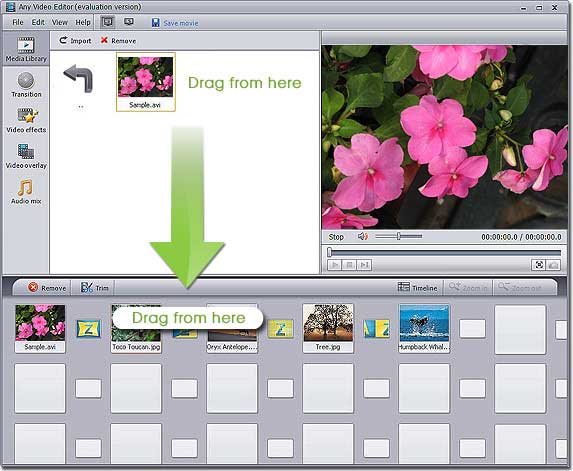
Step 2: Add the desired transition to videos or images
Click the Transition pane and choose the transition you like best in the right area then drag and drop it to the video or image in Main video row of the Timeline:

Alternatively, toggle to the Storybox view, select the transition you would like to add to the video of yours, and click it with the left mouse button. Then, without releasing the button, drag the selected transition to the rectangle between the video clips and drop it there.

Apply random transition to video or image: Select a rectangle between the two video clips at the Storyboard where a transition should be added, right-click on it, you can Add random transition, Add random transition to all and Remove all. If you have already added the transition, you can also Add current transition to all or Remove it.
Step 3: Define the transition duration
After a transition is added to the Timeline/Storyboard Area you can change its duration between the scenes.
Click a transition with the mouse and select the Duration button of the Storyboard Toolbar.
The following window will be opened:

You can input a amount of Frames in the left box, then the right box will display how long it will go on.
Click the OK button to accept changes or Cancel to discard changes and close the Transition Duration window.
Important Notes: Only under the Storybox view, can you apply random transitions and define the transition duration.
Key Features of Any Video Editor:
* Support Extensive input media formats: all popular video, audio, image file formats
* Edit video, overlay video and image, mix audio, add image watermark
* Insert amazing transitions, apply special effects, and add external srt subtitles
* Split and join video and audio, trim out unwanted segments
* Preview all edits in real time without rendering the entire project
* Convert Video, Audio, and Photo to MP4, MPEG2, HDVideo or FLV
* Create stunning photo slideshows in three simple steps
* Fast video encoding speed
Sounds great?
Why not download and try Any Video Editor today?