

 Windows XP, Vista, 7
Welcome to Any Video Editor User Guide!
Any Video Editor - a full-featured yet easy-to-use video editing tool that allows placing a digital image watermark over an existing video in the batch mode. Watermarks can be used for protection or adding comments to your movies. You may impose watermark on a whole video file.
If you want to add an image watermark to the video or image to protect your copyright avoiding piracy or meet your other special needs, Any Video Editor allows you to embed images, for example, a logo, into the digital media such as video or images. It is an excellent way to stamp a personalized identification mark such as your company name, date of creation etc. on the visual material.
How to add watermark to video in Any Video Editor?
Step 1: Import media to Any Video Editor
Step 2: Add video or image to the Timeline
Step 3: Add watermark image to video
Step 1: Import media to Any Video Editor
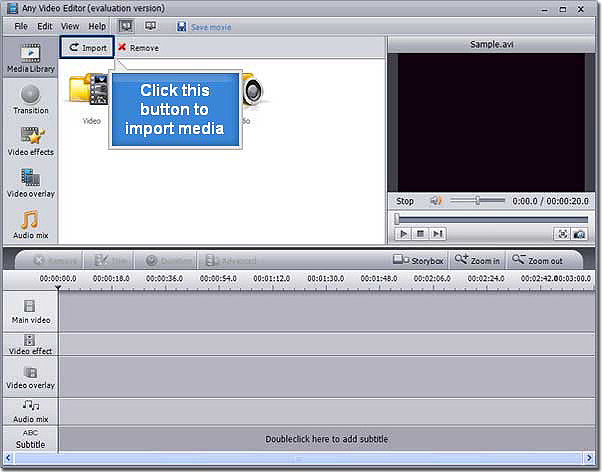
Run Any Video Editor. Click the Import button within the Main Library pane to load the desired video files, audio files, or image files.
Select the necessary media files and click the Open button.
Step 2: Add video or image to the Timeline
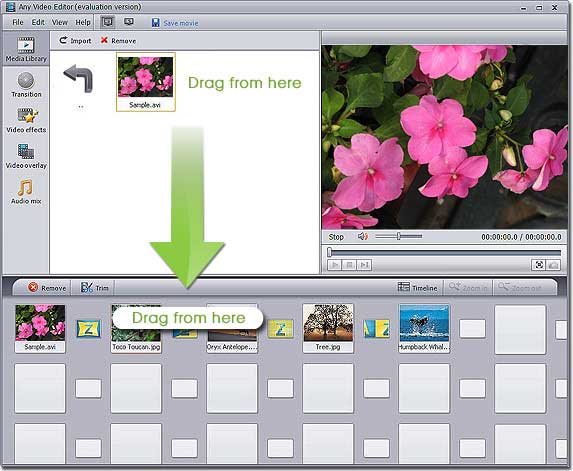
To put a watermakr image over the video files, you should place your video clips to the Timeline area, first of all. So, select your video in the file area (enter the Video category if you are not in it) and without releasing the left mouse button drag it to the very first row of the Timeline and only after that release the button to drop the video there:
Step 3: Add watermark image to the video
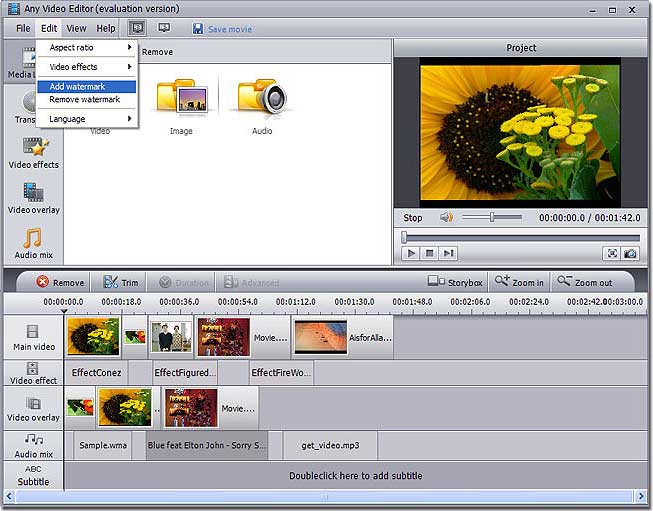
On the top menu, click Edit, click Add Watermark, then you will see a screen below:
You can change both Water mark file and Water mark mask by click Browse button. (Note: Load an image to add water mark and use another image for mask, in the mask image, "black" means completely transparent, "white" means completely opaque, the two images must have the same size and format.)

To accept the changes click the OK button, to discard the changes and close the Add watermark window use the Cancel button.
If you do not like the watermark you add, you can use the Remove Watermark Option of the Edit section of the Top Menu to remove the watermark.
After adding a watermaker image to the video file you can preview the applied effect in the Preview Area.
Key Features of Any Video Editor:
* Support Extensive input media formats: all popular video, audio, image file formats
* Edit video, overlay video and image, mix audio, add image watermark
* Insert amazing transitions, apply special effects, and add external srt subtitles
* Split and join video and audio, trim out unwanted segments
* Preview all edits in real time without rendering the entire project
* Convert Video, Audio, and Photo to MP4, MPEG2, HDVideo or FLV
* Create stunning photo slideshows in three simple steps
* Fast video encoding speed
Sounds great?
Free download Any Video Editor to brand your video with a watermark!