

 Windows XP, Vista, 7
Any Video Editor - avi video editor – Download Free Trial
Any Video Editor is a video editing application which allows you to create movie projects from various video clips, audio and image files. This avi video editor allows you to import various file formats including .avi, .wmv, .3gp, .wmv, .divx and many others and then overlay video, mix audio, cut frames, add subtitles, watermark and soundtracks. Touch up or enhance your video clips with transitions and effects. Complete free trial, no functional limits.
Screenshots
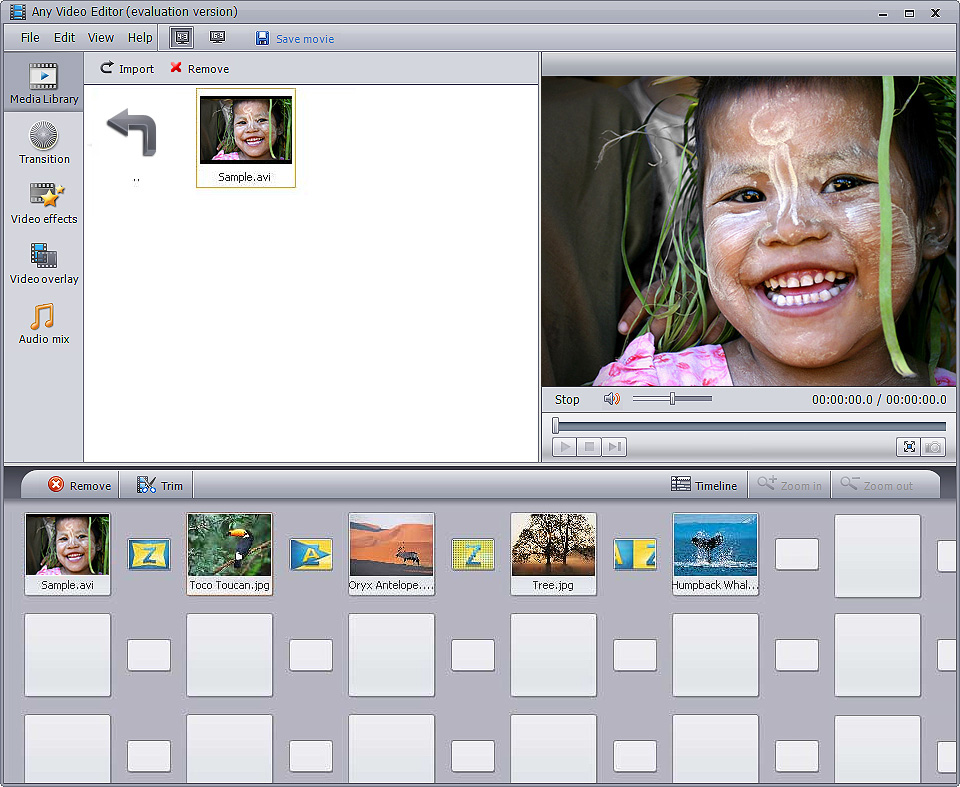

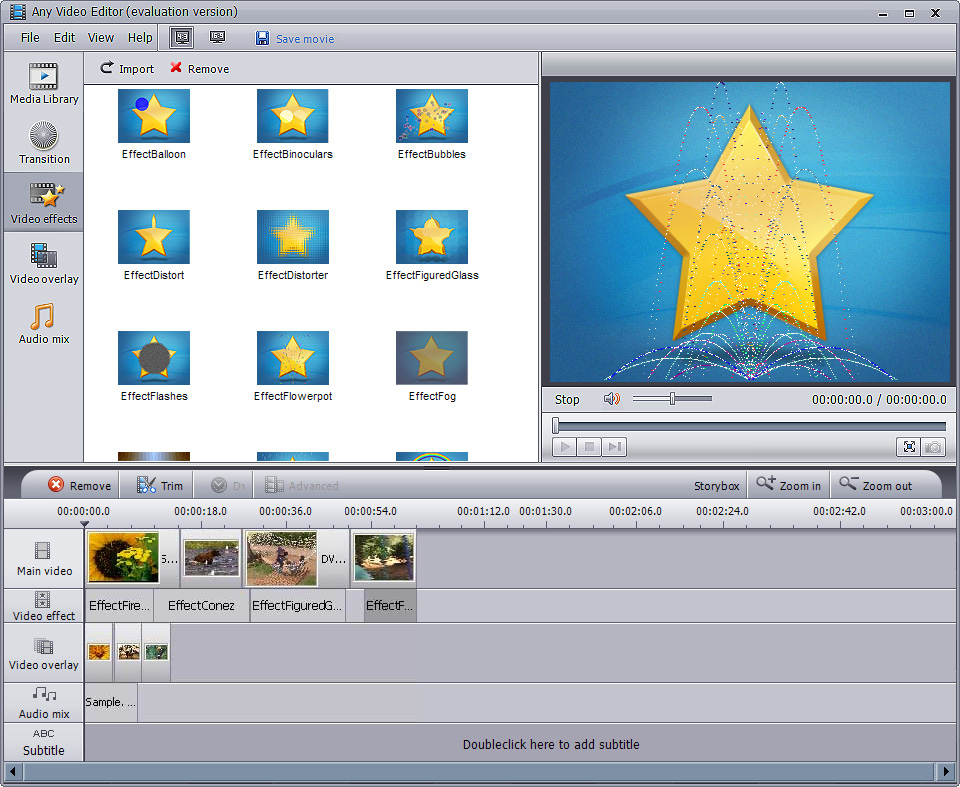

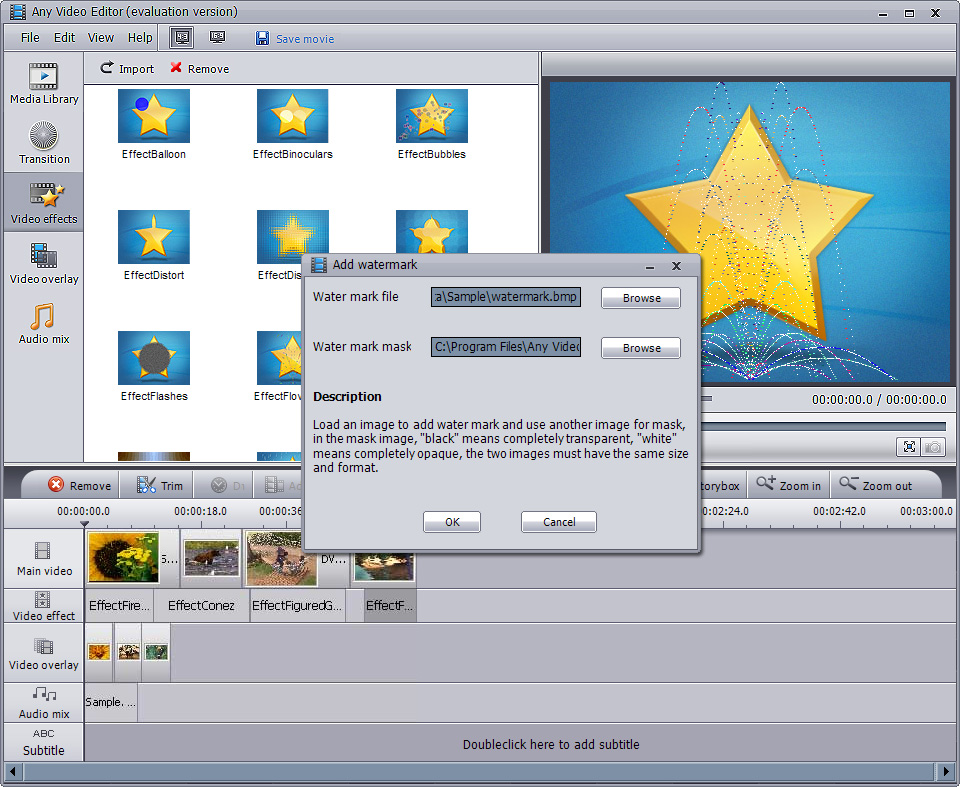

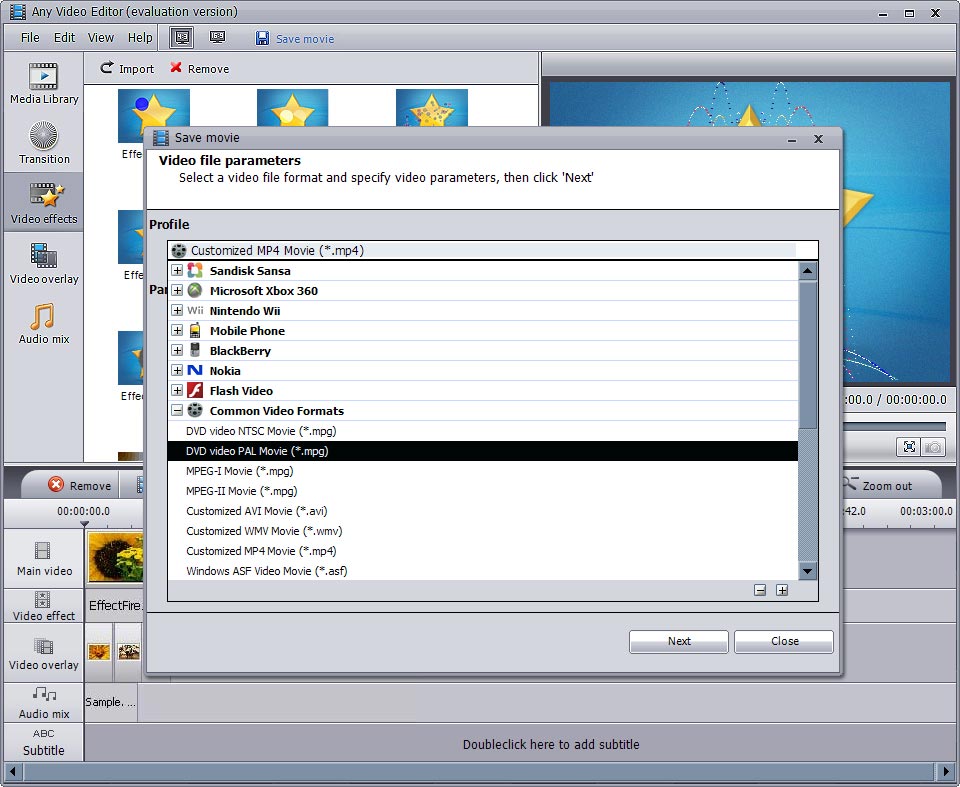
avi video editor is the most easily used Video Converter/Editor tools. For acting as a Video Editor, various slide effect/transition/subtitle can be added to a video clip. Also, the video clip can be cut to fit desired needs. Multiple video/audio clips and photos can be joined together. Converting speed is fast and the quality of output file is excellent.
With avi video editor you can do the following things:
- Import media from different sources: video & audio & image
- Edit video, audio and image on a unique video editing timeline and storybox panel
- Add transitions, effects, external subtitles and image watermark to videos
- Overlay video and image on the main video and image
- Edit video for YouTube, Google Video, etc.
- Cut and trim out unwanted part from the video and audio files
How to edit video with avi video editor?
Please follow the steps below to use avi video editor to import media, edit video, and make movie and slideshow for playing on your PC, iPod, iPhone, Apple TV, etc.
Step 1: Download and install avi video editor
Step 2: Import media from your hard drive to the program
Step 3: Edit video, audio, and image on the timeline and storybox
Step 4: Save your movie to the selected format
avi video editor gives you amazing video editing functions in one package. Convert video including HD videos to MP4, MPEG2, AVCHD Video and FLV video formats for various devices. Playback media within the program. Create photo slideshows. Split & merge video. Edit video on a timeline, improve video quality, and apply artistic effects. Insert transitions, add soundtracks & subtitles.
Step 1: Download and install avi video editor
avi video editor is downloadable for trial. To enable our users better experience Any Video Editor before they buy the program, we offer all users a free trial, which has no functional limits, only with a credit message “Evaluation version, powered by AnvSoft Inc” in the middle of the movie. Click the Download button below to download avi video editor. avi video editor is compatible with both 32-bit and 64-bit Windows Vista and Windows 7.

Download Free Trial of avi video editor
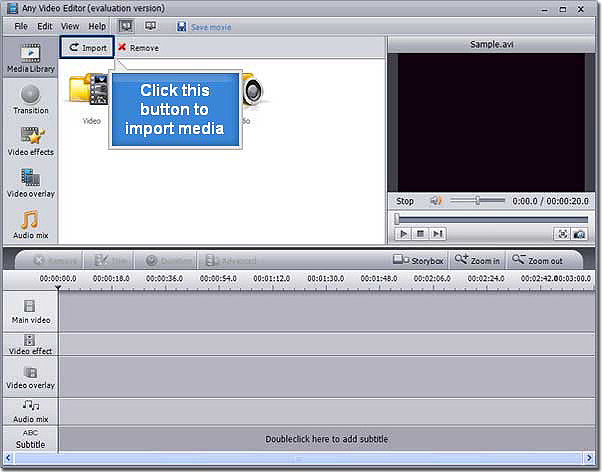
Step 2: Import media from your hard drive to the program
avi video editor accepts different media files including video, audio and image.
Click Import button to import video files including *.flv, *.f4v, *.tod, *.mod, *.m2t, *.m2ts, *.ts, *.tp, *.evo, *.mkv, *.dv, *.3gp, *.3g2, *.3gpp, *.wmv, *.asf, *.mov, *.qt, *.avi, *.mpg, *.mp4, *.vob, *.mov, *.mpeg; audio files including *.mp3, *.wav, *.wma, *.ogg, etc.; image files like *.jpg, *.ico, *.bmp, *.png, *.gif, *.tiff.
Step 3: Edit video, audio, and image on the timeline and storybox
Drag and drop video, audio, and image files to the timeline and storybox, then starting edit them with the transitions, effects, subtitles, watermark, overlay effect, etc.
The meat of the interface is the series of five vertically arranged timelines, representing main video, video effect, video overlay, audio mix, and subtitle. Each of these is identified by a small icon.
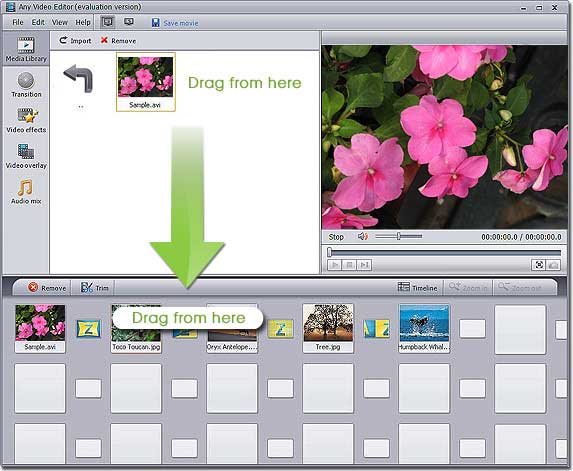
Editing videos is simply a matter of opening the desired files and arranging them in the appropriate positions on the timelines, dragging and dropping them into the desired positions. The program has several other useful features, including tools that let users trim, join, and convert video files and extract images from video footage.
avi video editor is a full-featured application that gives users numerous tools for editing videos. Although the program's design could stand to be a bit more intuitive, this program is straightforward in operation and is suitable for users of all experience levels.
Step 4: Save your movie to the selected format
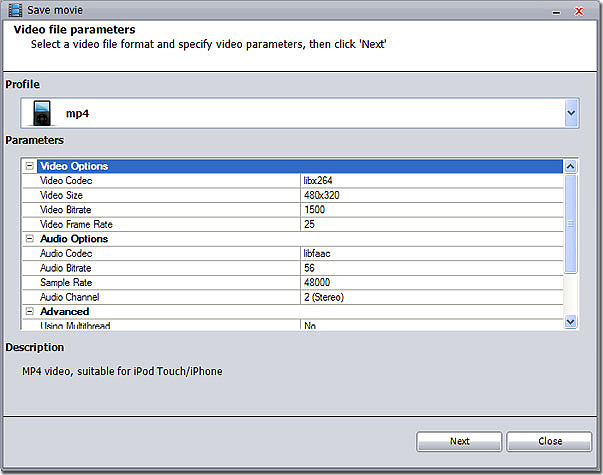
Once you've finished adding music, effects, transitions, and subtitles to your video, you'll want to export it to a video format or two. Common formats include flash video (FLV, for YouTube), MPEG-2, and MPEG-4, and even AVCHD.
Click Save movie button to select output video file format, specify video parameters, output folder and file name, then click “Create” to start encoding a movie.
Wait for a while, and you can post your movie to your video blog (vblog) or to YouTube, Google Video, Grouper or any other of your favorite video sites.
Besides, you can transfer your movie to your portable devices, such as iPad, iPod, iPhone, iPod touch, Apple TV, Zune, PSP, Walkman, Archos, Creative Zen, iRiver PMP, Sandisk Sansa and other portable video device like 3GP phone, MP4/MP3 player, PS3, wii, Xbox360 and so on.

What to Look For in avi video editor Software?
Looking for a good video editing software application to create a professional looking video? avi video editor is designed to help users in making video faster, easier and more professional. The program offers three main solutions: Video Editing, Video Converting, Slideshow Sharing.
Video Editing: avi video editor offers wide range of tools for trimming, splicing, cutting and arranging video across the timeline, watermarking, titling and visual effects as well as tools for editing and mixing audio.
Video Converting: avi video editor supports converting different types of media into multiple video file formats including MP4 MPEG2, AVCHD Video, FLV. You can also specify the video and audio parameters, including Video Codec, Video Size, Video Bitrate, Video Framerate, Audio Codec, Audio Bitrate, Sample Rate and Audio Channel, to meet your needs. Moreover, you can choose multithread and two-pass encoding modes.
Slideshow Sharing: avi video editor not only supports making movie but also allows creating photo slideshow. Import digital photos into the program, add transitions, apply effects, include multiple sound tracks, then click Save movie to publish your project into stunning slideshow. After that, you can share your video with your friend or family by uploading it online on YouTube as well as other video websites.
What types of media can be supported by avi video editor?
Input Video Format: 3GP, 3G2, 3GPP, ASF, AVI, DAT, Divx, FLV, M1V, M2T, MPE, MPEG, MPEG2, MPG, MPV, OGM, OGV, TOD, TP, TRP, TS, WMV, MKV, MOV, QT, MP4, etc.
Input Audio Formats: MP3, WMA, OGG, M4A, WAVE, OGG, AC3, AMR, OGA, DTS, MP2, etc.
Input Image Formats: JPEG, PNG, BMP, GIF, etc.
Output Video Formats: MP4, MPEG2, HDVideo, FLV.
Output Video for Mobile Devices: iPad, iPod, iPhone, iPod touch, Apple TV, Zune, PDA/Pocket PC (including BlackBerry), Creative Zen, Archos, Epson media players, cell phones, netbook, smartphones, etc.
Buy avi video editor to edit video clips and make movie
Feel satisfied with avi video editor? You can buy avi video editor now at only USD 19.95! We accept PayPal, Credit/Debit card (Visa/MasterCard) , Bank/Wire transfer, American Express Card, Diners Club Card, JCB Card, and Credit/Debit card (Payment information by Fax). You can choose any one of these payment methods to order our avi video editor software.
License key for registering the avi video editor will be delivered to your email address as provided in the order form. Please use the key to register Any Video Editor so that there will be no limit when you use the avi video editor to edit video and make movie and picture show.
Have questions about our avi video editor? Want to ask or share video editing experience? Please feel free to contact us.
Buy avi video editor now at only USD 19.95!
| wmv editor | video editor |